Share Post

Table of Contents

CorePlus – Image Gallery

Learn how to create dynamic, scrollable image galleries in Unreal Engine using the CorePlus Image Gallery plugin. This quick guide covers setup, layout options, and how to load images from your game, device, or the internet—no coding required!

🔧 Overview

The CorePlus Image Gallery is a feature-rich template for Unreal Engine that makes it easy to display images in your UI. It includes:

  • A Main Widget that controls gallery logic.

  • Two example galleries with prebuilt layouts: horizontal and vertical.

  • Support for three types of image sources:

    • In-Game Images (textures already in your project)

    • Local Images (files from the user’s device)

    • Internet Images (downloaded dynamically)

📁 Accessing the Plugin Content

Before you begin using CorePlus AR, you need to access the plugin content. There are two ways to do this:

✅ Method 1: Project Plugin Folder (Editable)

  1. Copy CorePlus Plugin from:

     
    [UE_Install]/Engine/Plugins/Marketplace/CorePlusPlugin
     

    To:

     
    [YourProject]/Plugins/
  2. In Unreal Editor:

    • Open Content Browser

    • Click the ⚙️Settings Option (top-right)

    • Enable Show Plugin Content

You’ll now see:

Plugins > CorePlusContent


Pros
✅ Easy access and customization
✅ Built directly into your project
✅ Editable plugin files

Cons
⚠️ No auto-updates — you must update it manually

✅ Method 2: Engine Plugin Content (Auto-updating)

  1. Enable CorePlus Plugin via the Plugin Manager

  2. In Content Browser:

    • Open Content Browser

    • Click the ⚙️Settings Option (top-right)

    • Enable Show Engine Content

    • Navigate to:

      Engine > Plugins > CorePlusContent

Pros
✅ Always up-to-date with Unreal Engine

Cons
⚠️ Plugin content is not directly editable

Tip: Choose the method that best fits your workflow — editable plugin content or automatic updates.

🗺️ Explore the Example Map

Once you’ve enabled access to the plugin content, open the example map to preview the gallery system:

CorePlusContent > ImageGallery > Maps > Map_CorePlus_ImageGallery


This map showcases:

  • A full-size image viewer

  • A thumbnail-style image bar

Both come in horizontal and vertical layouts to fit different UI needs.

🧩 How to Use in Your Project

📁 Navigating the Gallery Blueprints

To implement or modify the gallery, go to:

CorePlusContent > ImageGallery > Blueprints > UI

Inside, you’ll find:

  • A Menu folder (used for navigation in the demo—optional)

  • An ImageGallery folder (main components and examples)

Within ImageGallery, explore:

  • Example: Showcases working setups

  • Components: Reusable parts to build your own galleries

🛠️ Creating Your Own Image Gallery

Here’s how to build a custom gallery:

1. Create a New Widget

Make a child widget of:

WBP_CorePlus_ImageGallery_BaseGalleryType

Example: WBP_CorePlus_ImageGallery_FullSize_Horizontal

2. Design the Layout

  • Open the widget.

  • Add a ScrollBox where you want the gallery to appear in the Designer tab.

  • Place it inside a Canvas Panel for full-view galleries, but you can use any container.

3. Set ScrollBox in the Graph

  • In the Graph, assign your ScrollBox to the plugin’s ScrollBox variable.

  • 01 Setup Scroll Bar - CorePlus - Image Gallery - Unreal Engine Plugin

This completes the base gallery setup!

🖼️ Loading Images Into the Gallery

The plugin supports three image sources. Here’s how to configure each:

🔹 In-game image Gallery

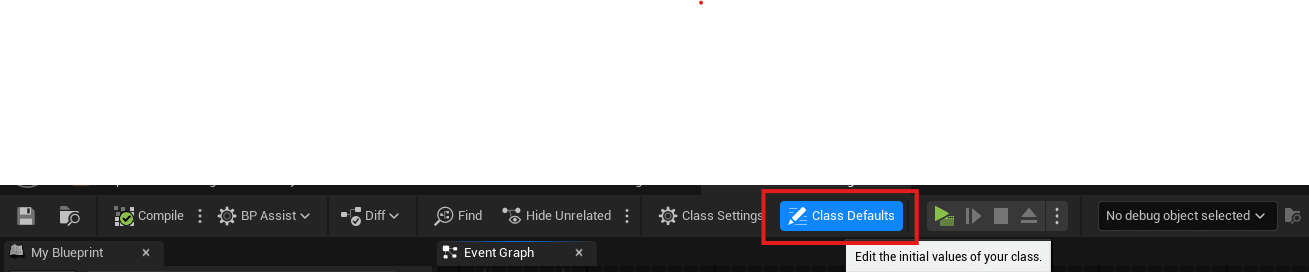
  1. Open the widget and click Class Defaults.

    • 02 Show Default Values - CorePlus - Image Gallery - Unreal Engine Plugin

  2. Set your images in the variable:

    Custom > In Game > In Game Library
  3. In the Event Construct, or when you want to load the library, call function:
    Load In Game Library

🔹 Local Image Gallery

  1. In the Event Construct, or when you want to load the library, call function:

    Load Local Library
  2. Provide the search locations where the images are stored on the device.

🔹 Internet Image Gallery

  1. Open the widget and click Class Defaults.

    • 02 Show Default Values - CorePlus - Image Gallery - Unreal Engine Plugin

  2. Set your images in the variable:

    Custom > Internet > Internet Image Details
  3. In the Event Construct, or when you want to load the library, call function:

    Load Internet Library
  4. Pass the Global Save Path for downloaded images save path.

Tags

Unreal Engine, CorePlus Plugin, Image Gallery, Unreal Engine UI, Game Development, UE5 Tutorial, UI Design, Plugin Setup, Dynamic Gallery, Sci-Fi UI, Local Image Loader, Internet Image Loader, In-Game Textures, Blueprint Widgets, Unreal Engine Plugins

Related Posts