AR Furniture Documentation

AR Furniture Documentation
Overview
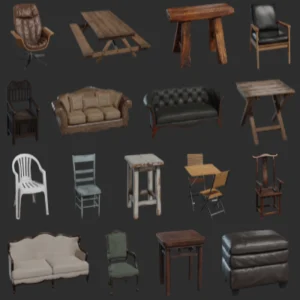
The AR Furniture asset provides tools to visualize and interact with 3D furniture models in augmented reality. This documentation outlines the steps to modify meshes, integrate user interface (UI) images, and add new meshes and UI elements to the project.
For further assistance, refer to the accompanying video tutorial.
How to Change a Mesh
Navigate to the Mesh Blueprint
- Path:
Content/Blueprints/Mesh - Open the
BP_Objectblueprint.
- Path:
Modify the Select Node
- Go to the
EventGraphin theBP_Objectblueprint. - Locate the
Begin Playnode. - Update the values of the
Selectnode to change the static mesh.
- Go to the
Set the Static Mesh
- Assign a new static mesh to replace the current one.
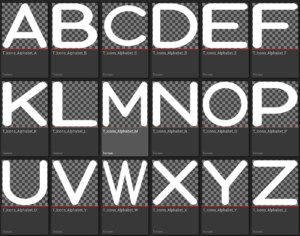
How to Change Mesh with UI Image
Change the Mesh
Navigate to the Mesh Blueprint
- Path:
Content/Blueprints/Mesh - Open the
BP_Objectblueprint.
- Path:
Modify the Select Node
- Go to the
EventGraphin theBP_Objectblueprint. - Locate the
Begin Playnode. - Update the values of the
Selectnode to change the static mesh.
- Go to the
Change the UI Image
Navigate to the UI Blueprint
- Path:
Content/Blueprints/UI - Open the
WBP_Defaultblueprint.
- Path:
Select the Desired Image
- Locate the image you want to change.
- In the
Detailspanel, underAppearance > Style, modify the image for the following states:- Normal
- Hovered
- Pressed
How to Add Mesh and UI Images
Add a New Enum
Navigate to the Enum Blueprint
- Path:
Content/Blueprints/Enums - Open the
Enum_ObjectTypeblueprint.
- Path:
Create a New Enum
- Use the new button located at the top-right corner to add a new enum.
Setup the Mesh
Navigate to the Mesh Blueprint
- Path:
Content/Blueprints/Mesh - Open the
BP_Objectblueprint.
- Path:
Modify the EventGraph
- Go to the
EventGraphin theBP_Objectblueprint. - Locate the
Begin Playnode. - Update the values of the new node to add a static mesh.
- Go to the
Setup the UI
Navigate to the UI Blueprint
- Path:
Content/Blueprints/UI - Open the
WBP_Defaultblueprint.
- Path:
Add and Arrange UI Elements
- Click on any object image in the hierarchy panel at the bottom left corner.
- Copy and paste an existing button and spacer.
- Arrange the new button and spacer as needed.
Create On-Click Events
- Copy and paste code from an existing object button.
- Modify the object type to the new enum created earlier.
Update Button Functions
- Open the
Reset Object Select Buttonfunction and copy-paste code for the new button. - Open the
Set Object Select Buttonfunction and copy-paste code for the new button.
- Open the
For any issues or further details, please refer to the video tutorial or contact support.
Tutorial: Link
Tags
ocean interaction, unofficial documentation, unreal engine, c++, AR Furniture, Unreal Engine asset, augmented reality furniture, Unreal Engine tutorial, AR furniture customization, change mesh Unreal Engine, add UI images Unreal Engine, blueprint setup Unreal Engine, AR development guide, Unreal Engine AR projects, static mesh Unreal Engine, UI blueprint Unreal Engine, Enum setup Unreal Engine, AR asset tutorial, Unreal Engine video tutorial.