Share Post

Table of Contents

CorePlus – Fortune Wheel

Welcome to the CorePlus Fortune Wheel – a plug-and-play Blueprint module that lets you integrate fully customizable, animated fortune wheels into your Unreal Engine projects. Whether you're making a reward spinner, loot system, or mini-game mechanic, this module has you covered.

🔧 Overview

The CorePlus Fortune Wheel offers:

  • 🎨 2 Unique Visual Styles

  • 🔢 7 Variants per Style (2 to 8 segments)

  • 🧩 Fully customizable UI

  • 📦 Drag-and-drop Blueprint widgets

  • 🔁 Easy event binding and result logic

📁 Accessing the Plugin Content

Before you begin using CorePlus AR, you need to access the plugin content. There are two ways to do this:

✅ Method 1: Project Plugin Folder (Editable)

  1. Copy CorePlus Plugin from:

     
    [UE_Install]/Engine/Plugins/Marketplace/CorePlusPlugin
     

    To:

     
    [YourProject]/Plugins/
  2. In Unreal Editor:

    • Open Content Browser

    • Click the ⚙️Settings Option (top-right)

    • Enable Show Plugin Content

You’ll now see:

Plugins > CorePlusContent


Pros
✅ Easy access and customization
✅ Built directly into your project
✅ Editable plugin files

Cons
⚠️ No auto-updates — you must update it manually

✅ Method 2: Engine Plugin Content (Auto-updating)

  1. Enable CorePlus Plugin via the Plugin Manager

  2. In Content Browser:

    • Open Content Browser

    • Click the ⚙️Settings Option (top-right)

    • Enable Show Engine Content

    • Navigate to:

      Engine > Plugins > CorePlusContent

Pros
✅ Always up-to-date with Unreal Engine

Cons
⚠️ Plugin content is not directly editable

Tip: Choose the method that best fits your workflow — editable plugin content or automatic updates.

🗺️ Explore the Example Map

Preview all wheels:

Path:
CorePlusContent > Fortune Wheel > Maps > Map_CorePlus_FortuneWheel_Main

  • 🖱️ Right-click + drag to scroll through wheel gallery

  • 🔄 Both Style 01 & Style 02 included

  • 🔢 Each with 2–8 segment variations

🧩 How to Use in Your Project

To implement the Fortune Wheel in your own UI:

1. Choose a Wheel Component

Go to:
CorePlusContent > Fortune Wheel > Blueprints > UI > Example

Pick any of the example widget:

  • Style 01: CorePlusFortuneWheel01_4 (example: 4 segments)

  • Style 02: CorePlusFortuneWheel02_6 (example: 6 segments)

Or create your own and add the corresponding component manually:

CorePlusFortuneWheel[Style][Options]

3. Handle Results

In the widget’s Blueprint:

  1. In the Event Graph, locate Event Construct

  2. Get a reference to the Fortune Wheel Component

  3. Bind the event OnSpinFinish
    This event will return the selected result once the spin ends.

Blueprint Example:

CorePlus - Fortune Wheel - Unreal Engine Plugin - 01 Envent Binding

4. Trigger a Spin

To spin the wheel:

Blueprint:
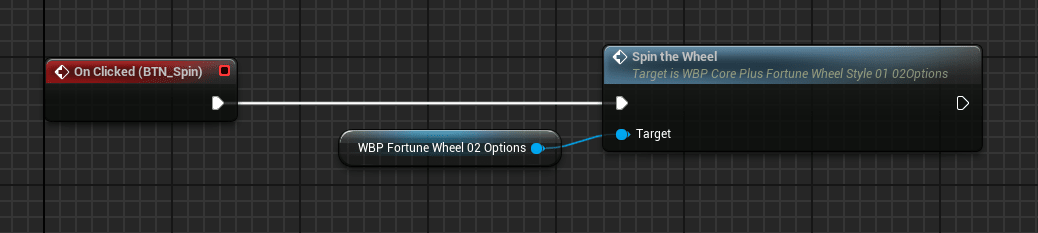
CorePlus - Fortune Wheel - Unreal Engine Plugin - 02 Function Call


That’s it — your Fortune Wheel is now live and ready to spin!

🔄 Customization Tips

  • You can modify the result logic, visuals, and icons as needed.

  • Supports drag-and-drop integration into any user interface.

  • Works with both static and dynamic option lists.

Tags

unreal engine, game development, coreplus fortune wheel, fortune wheel plugin, unreal engine plugin, spin wheel system, blueprint fortune wheel, ue5 game plugin, customizable fortune wheel, sci-fi game UI, gamification tools, reward spinner, unreal marketplace plugin, interactive wheel system, lucky wheel for games, game UI components, drag and drop blueprint, spin to win system, unreal engine sci-fi plugin, blueprint game mechanics

Related Posts